

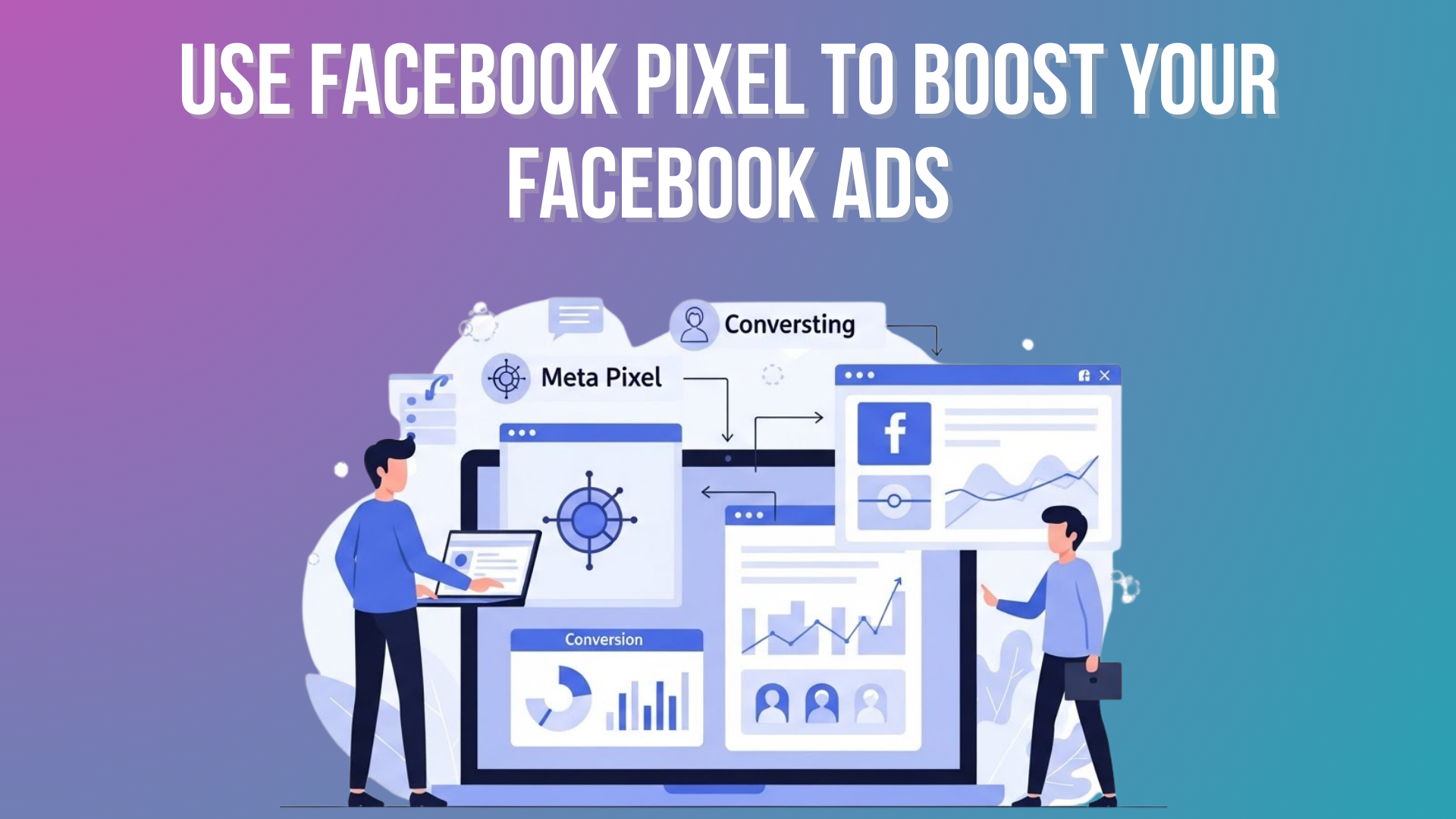
If you’ve ever spent money on Facebook ads and wondered why you’re not seeing real results — more leads, sales, or sign‑ups — you’re definitely not alone. Many beginners, small business owners, and even experienced advertisers struggle with the same questions:
- “Why is my ad not converting?”
- “How can I tell if visitors actually do what I want them to do on my website?”
- “Can I show ads to people who have already visited my site before?”
These problems happen because Facebook advertising has a steep learning curve. You can spend money on ads without knowing what happens after someone clicks them. This leads to wasted budget, confusion, and frustration.
But here’s the good news: The Meta Pixel (formerly Facebook Pixel) gives you the data you need to make smarter ad decisions — without guesswork.
The Meta Pixel is a small piece of code that you add to your website. Once installed, it tracks what people do after seeing or clicking your Facebook or Instagram ads. That tracking data gives you important insights that help you:
✔ Measure ad performance accurately
✔ Retarget visitors who didn’t convert
✔ Reach new audiences similar to your best customers
✔ See which ads actually work — and which don’t
In this article, you’ll learn what the Meta Pixel is, how it works, how to install it, how to use it to optimize your Facebook ad campaigns, and best practices for 2026.
What Is Facebook Pixel (Meta Pixel)?
The Facebook Pixel, now officially called Meta Pixel, is a tiny piece of JavaScript code that you place on your website. Once added, it tracks the actions that people take on your site after seeing or clicking your Facebook or Instagram ads.
Instead of paying for clicks and hoping for results, Meta Pixel gives you data‑driven insight into real user behavior.
You can think of it like a digital assistant that:
✔ Records actions (“events”) like page views, add‑to‑cart, purchases
✔ Sends this data back to Meta (Facebook)
✔ Helps Meta optimize your ad delivery to the right people
Simple Example:
A person sees your Facebook ad → clicks it → lands on your website → adds a product to the cart → doesn’t buy.
- Without Pixel: You have no idea this happened.
- With Pixel: Meta knows this visitor showed interest, and you can retarget them later with a follow‑up ad.
This transforms your ads from “spray and pray” to meaningful, data‑optimized campaigns.
How Facebook Pixel (Meta Pixel) Works
Meta Pixel works by tracking user behavior on your website after someone engages with your ad. It records actions that Meta calls events. These events allow the platform to learn what visitors do — and then use that information to improve your campaign results.
What Events Are
Events are actions that visitors take on your website. Some examples include:
Step‑by‑Step: What Happens When Pixel Is Active
- Pixel Loads on Your Website: Meta Pixel code runs when someone visits any page where the Pixel code is added.
- Pixel Records Events: It logs the actions those visitors take — like visiting a product page or signing up.
- Data Goes to Meta (Facebook): This event data is sent back to Meta’s servers.
- Meta Uses Data to Optimize Your Ads: Meta’s algorithm learns who is most likely to take the action you want and targets future ads to similar people.
- You See Results in Ads Manager: You can view conversions, sales, and behaviors driven by your ads.
This flow turns guesswork into data‑driven decisions — boosting your ad performance and lowering wasted spend.
Meta Pixel Standard Events Table (Official List)
Facebook (Meta) Standard Events are predefined user actions that help Meta understand what people do on your website after interacting with your ads.
Using the correct events allows Meta to optimize ads, track conversions accurately, and build high-quality audiences. Below is the official, complete list of 17 standard Meta Pixel events
| # | Event Name | What It Tracks | Best Used For | Beginner Example |
| 1 | PageView | When any page loads | Traffic tracking | Someone visits your homepage |
| 2 | ViewContent | Viewing key content | Content & product interest | Viewing a blog post or product page |
| 3 | Search | On-site searches | User intent tracking | Searching “running shoes” |
| 4 | AddToCart | Adding item to cart | Purchase intent | Adding shoes to cart |
| 5 | AddToWishlist | Wishlist actions | High purchase interest | Saving product for later |
| 6 | InitiateCheckout | Checkout started | Funnel tracking | Clicking “Proceed to checkout” |
| 7 | AddPaymentInfo | Payment details added | Checkout progress | Entering card details |
| 8 | Purchase | Completed purchase | Revenue tracking | Order successfully placed |
| 9 | Lead | Lead form submitted | Lead generation | Submitting contact form |
| 10 | CompleteRegistration | Account sign-up | User acquisition | Creating an account |
| 11 | Subscribe | Subscription started | Recurring revenue | Newsletter or paid plan signup |
| 12 | Contact | Contact intent | Sales inquiries | Clicking “Contact Us” |
| 13 | CustomizeProduct | Product customization | Advanced eCommerce | Selecting size or color |
| 14 | Donate | Donations made | Nonprofits | Making a donation |
| 15 | FindLocation | Store/location search | Local businesses | Searching nearest store |
| 16 | Schedule | Appointment booking | Service businesses | Booking a consultation |
| 17 | StartTrial | Free trial started | SaaS products | Starting a 7-day free trial |
If you’re just starting out, you do NOT need all 17 events. If you are beginner then start with these core events only:
✔ PageView
✔ ViewContent
✔ AddToCart (if eCommerce)
✔ Lead (for service or form-based sites)
✔ Purchase (if selling products)
This gives Meta enough data to optimize ads without overwhelming your setup.
Why Facebook Pixel Is Essential in 2026
Even though social media platforms and advertising trends evolve every year, the Meta Pixel remains one of the most powerful tools for improving your Facebook Ads results. Here’s why it’s especially important in 2026:
1. Facebook Remains Huge
Facebook (Meta) still has nearly 3 billion active users, and Instagram adds even more reach. These platforms are among the largest ad channels in the world.
2. Ad Costs Are Rising
The average cost per thousand impressions (CPM) has increased as competition for ad space grows. Without precise tracking, you risk wasting money on ads that don’t perform.
3. Competition Is Tough
More businesses are advertising than ever before. You need data to compete — not guesswork.
4. First‑Party Data Is Becoming More Valuable
With privacy updates from Apple and Google limiting tracking, first‑party data (data you collect directly from your site) gives you an edge. Meta Pixel is one of the best ways to collect that data from your own audience.
Main Benefits of Facebook Pixel
Let’s break down the core advantages of installing Meta Pixel:
1. Track Website Actions
Meta Pixel monitors what people do after interacting with your ads — from landing page views to completed purchases. This tells you which ads are actually driving results.
2. Improve Ad Targeting
Pixel data helps Meta learn who is most likely to take desired actions, so it can show your ads to more of the right people, not random users.
3. Retarget Visitors
If someone visits your site but doesn’t convert, you can show them ads afterwards — reminding them to return and complete the action.
4. Build Lookalike Audiences
Using Pixel data, Meta can create audiences that resemble your best customers — expanding your reach to new, high‑potential users.
5. Optimize Campaign Performance
Pixel insights help you stop underperforming ads and put more budget behind the ads that deliver real results.
How to Set Up Facebook Pixel — Step-by-Step (Beginner Friendly)
Setting up the Facebook Pixel (now called the Meta Pixel) may sound technical, but it’s actually quite manageable when broken down into simple steps. You don’t need to be a developer or marketing expert to do this correctly.
Before we begin, let’s make sure you have the basic requirements ready.
Before You Start: What You Need
To set up Facebook Pixel successfully, you must have the following:
✔ Meta Business Manager account: This is Facebook’s main dashboard for managing ads, pixels, pages, and business assets. If you’re running ads, you already need this.
✔ Facebook Ads account: Pixel works together with your ads. Without an ads account, you can’t create or use a Pixel.
✔ Access to your website: You must be able to either:
- Add code to your website, or
- Connect your website using platforms like Shopify, WordPress, Wix, or Google Tag Manager
If you don’t control your website, ask your developer or admin for access. Once these are ready, you can start the setup.
Step 1: Create Your Meta Pixel
This step creates your unique tracking Pixel inside Meta’s system.
- Log in to Meta Business Manager: Go to business.facebook.com and sign in with your Facebook account.
- Open Events Manager: In the left menu, click Events Manager. This is where Meta manages Pixels, conversions, and tracking data.
- Click “Connect Data Sources”: This tells Meta you want to track data from a website or app.
- Choose “Web”: Select “Web” because you want to track activity on your website.
- Select “Meta Pixel”: This is the standard tracking tool for Facebook and Instagram ads.
- Name Your Pixel: Use a clear name like:
- Your Business Name Pixel
- Website Name Pixel
- This helps if you manage multiple projects later.
- Enter Your Website URL and Click Continue
This helps Meta check for available integrations.
You have now created your Meta Pixel and received a Pixel ID (a unique number). This ID connects your website activity to your Facebook ads.
Step 2: Add the Pixel to Your Website
Creating the Pixel is only half the job. To make it work, you must install it on your website so it can track visitor actions.
There are three main installation methods, depending on your website and experience level.
Option A: Manual Installation (For Code Access)
Best for: People who can edit website code or work with a developer.
How Manual Installation Works
When you install the Pixel manually, you place a small code snippet in your website’s header. This ensures the Pixel loads every time someone visits your site.
Steps:
- Copy the Pixel base code provided in Events Manager
- Open your website’s HTML files
- Paste the code inside the <head> section
- Make sure it appears on every page
- Save and publish your website
Why This Matters
Placing the Pixel in the header ensures it:
- Loads early
- Tracks all page views
- Captures user behavior accurately
If the Pixel is missing on some pages, data will be incomplete.
Option B: Partner Integrations (No Coding Needed)
Best for beginners and non-technical users
Meta supports direct integrations with popular website platforms. This is the easiest and safest method for most users.
Shopify Pixel Setup
- Log in to Shopify Admin
- Go to Online Store → Preferences
- Find the Facebook Pixel section
- Paste your Pixel ID
- Click Save
Shopify automatically installs and manages the Pixel for you.
WordPress Pixel Setup
- Log in to your WordPress dashboard
- Install a plugin like PixelYourSite
- Open the plugin settings
- Paste your Pixel ID
- Choose which events to track (PageView, AddToCart, Purchase)
This method avoids manual coding and is very beginner-friendly.
Wix Pixel Setup
- Go to Wix Dashboard
- Click Marketing & SEO
- Select Facebook Pixel
- Paste your Pixel ID
- Follow the on-screen setup wizard
Wix handles installation automatically.
Squarespace Pixel Setup
- Open Settings
- Go to Advanced → Code Injection
- Paste the Pixel code into the Header section
- Save changes
Squarespace ensures the Pixel loads on all pages.
Option C: Google Tag Manager (Advanced Setup)
Best for: Marketers managing multiple tracking tools (Pixel, Analytics, Ads).
Why Use Google Tag Manager (GTM)?
GTM allows you to manage all tracking scripts from one place without touching your site’s code repeatedly.
Steps:
- Log in to Google Tag Manager
- Select your website container
- Click Tags → New
- Choose Custom HTML
- Paste your Facebook Pixel code
- Set the trigger to All Pages
- Save and Publish
Benefits of GTM Setup
- Centralized tracking control
- Easy updates without code changes
- Ideal for scaling marketing efforts
This option is powerful but slightly advanced for first-time users.
Final Step: Verify Your Pixel Is Working
No matter which installation method you choose, verification is critical.
How to Check Pixel Status
- Go back to Meta Events Manager
- Open your Pixel
- Click Test Events
- Visit your website in a new tab
- Perform actions like page views or button clicks
If you see events appearing in real time, your Pixel is working correctly.
You can also use the Meta Pixel Helper (Chrome Extension) to detect errors and confirm events.
Why Proper Pixel Setup Is So Important
Many beginners run Facebook ads without realizing that one small tracking mistake can silently ruin their entire campaign. If your Meta Pixel isn’t set up correctly, Facebook simply doesn’t know what results you want.
If your Pixel is installed incorrectly:
- Conversions won’t track
- Retargeting won’t work
- Ads optimization will fail
- Money will be wasted
A properly installed Pixel is the foundation of successful Facebook advertising in 2026.
How to Verify Your Pixel Works
Once installed:
- Go back to Meta Events Manager
- Use the Test Events tab
- Visit your site
- Trigger events (like page views)
If events show up in real time — Pixel is working!
If not, check your installation or use the Meta Pixel Helper (Chrome extension) to debug.
Step 3: Fortify Tracking with the Conversions API (CAPI)
Even if your Pixel is installed correctly, some conversions may still be missed due to privacy restrictions. This is where the Conversions API (CAPI) becomes essential.
What Is Conversions API (CAPI)?
The Conversions API sends conversion data directly from your website server to Meta, instead of relying only on the user’s browser. This makes tracking more accurate, reliable, and privacy-compliant.
In simple terms:
- Pixel tracks actions in the browser
- CAPI tracks the same actions from the server
- Meta combines both for better optimization
Why CAPI Matters in 2026
CAPI helps you:
✔ Recover lost conversion data
✔ Improve ad optimization accuracy
✔ Reduce data loss from ad blockers
✔ Stay compliant with privacy rules
✔ Increase ROAS with better signals
Without CAPI, Facebook may not fully understand which ads drive real results.
How to Set Up Conversions API (Beginner-Friendly Options)
You do NOT need coding skills for most setups.
Option A: Platform Integration (Recommended for Beginners)
Most platforms support CAPI automatically:
Shopify
- CAPI is enabled by default
- Just connect Shopify to Meta Business Manager
WordPress
- Use plugins like:
- PixelYourSite
- Facebook for WooCommerce
- Enable “Server-Side Tracking” in plugin settings
Wix / Squarespace
- Built-in Meta integrations
- Follow guided setup to enable CAPI
This is the easiest and safest method.
Option B: Google Tag Manager + Server (Advanced)
Best for developers or large websites:
- Requires server configuration
- Allows custom event control
- Higher setup complexity
Beginners should stick with platform integrations.
Pixel + CAPI Together = Best Results
Meta recommends using both Pixel and CAPI together, not one instead of the other.
When both are active:
- Duplicate events are deduplicated automatically
- Conversion data becomes more complete
- Campaign learning improves faster
This setup gives Facebook the strongest signals to optimize your ads.
How to Confirm CAPI Is Working
- Go to Meta Events Manager.
- To confirm CAPI is active:
- Click on your Pixel,
- Then, go to Settings.
- Under ‘Connected Assets’, you should see both ‘Meta Pixel’ and ‘Conversions API’ listed.
You can also check Data Sources to see:
- Browser Events (Pixel)
- Server Events (CAPI)
If both appear, your tracking is fortified.
Facebook Pixel Events — What They Mean
Pixel events are specific user actions you want to track.
Standard Events (Built‑In)
Meta supports 17+ standard actions you can use right away:
✔ ViewContent — visited a page
✔ AddToCart — added item to cart
✔ InitiateCheckout — started checkout
✔ Purchase — completed purchase
✔ Lead — submitted form
✔ Search — performed a search
Tracking these helps Meta optimize your ads for real results rather than just clicks or impressions.
Custom Events
Custom events track actions specific to your business — like video plays, button clicks, downloads, or other behaviors not covered by standard events. These require extra setup but give deeper insight.
Using Meta Pixel for Retargeting — Simple and Powerful
Retargeting is one of the most valuable uses of Pixel data.
Here’s how it works:
- Somebody visits your site
- Pixel records their behavior
- Meta creates a Custom Audience
- You show ads to that audience later
For example:
A visitor views a specific product but doesn’t buy. Later, you run an ad showing that product — increasing the likelihood of a purchase.
Why Retargeting Works So Well
Most website visitors don’t convert on their first visit — not because they aren’t interested, but because they need more time or reminders. Retargeting brings your brand back in front of people who already know you.
Retargeted ads:
✔ Improve conversions
✔ Lower cost per conversion
✔ Increase return on ad spend (ROAS)
People who already shown interest are more likely to convert when reminded with relevant ads.
Best Practices for Facebook Pixel (Do’s & Don’ts)
Setting up the Meta Pixel is only the first step — how you use it determines whether your ads improve or fail. Following proven best practices helps Facebook understand your goals, optimize delivery, and prevent wasted ad spend.
Do:
✔ Install Pixel on every page of your site
✔ Use standard events for key actions
✔ Enable Advanced Matching to capture more data
✔ Build Custom Audiences and Lookalikes
✔ Test events regularly to ensure accuracy
Don’t:
✖ Ignore Pixel errors in Ads Manager
✖ Track everything without clear goals
✖ Forget to update Pixel after site changes
✖ Expect Pixel alone to fix ineffective ads
✖ Use too broad audiences without segmentation
Understanding Pixel Data — What to Look For
Pixel data can answer important questions:
✔ Which ads drive the most conversions?
✔ Which audiences engage most with your brand?
✔ Do people convert more on mobile or desktop?
✔ What path do users take before buying?
You can also see:
- Time to convert after clicking an ad
- Most common paths visitors take before converting
This real evidence helps refine targeting and improve campaign results over time.
Using Lookalike Audiences for Growth
Lookalike Audiences let you find new users similar to your best customers.
This works because:
✔ Meta uses Pixel data to identify shared traits
✔ Lookalikes expand your reach smartly
✔ You target people more likely to convert
Best audiences to base lookalikes on:
✔ Purchasers
✔ Leads
✔ Users who completed high‑value actions
Dynamic Ads — Personalized Product Ads
For eCommerce sites, Pixel enables Dynamic Ads (also called catalog sales).
These ads:
✔ Automatically show products from your catalog
✔ Are personalized based on user behavior
✔ Don’t require manual ad creation for each product
Example:
A visitor looks at a pair of shoes on your site. Later, a Dynamic Ad shows those exact shoes on Facebook — reminding them to return and buy.
Benefits:
- Personalized recommendations
- Saves time
- Boosts conversions
What to Do If Your Pixel Isn’t Tracking Correctly
If your Facebook ads aren’t showing conversions or events, the problem is often not your ads — it’s a Pixel tracking issue. Small setup mistakes can stop data from reaching Meta, leading to poor optimization.
Common Issues:
❌ Pixel not installed on all pages
❌ Events not firing
❌ Tag manager misconfiguration
❌ Browser cache or plugin conflicts
Fixes:
✔ Use Meta Pixel Helper Chrome extension
✔ Clear website cache
✔ Recheck code placement
✔ Use partner integrations for reliability
Frequently Asked Questions (FAQs)
Q1: Is Facebook Pixel free?
Yes, the Meta Pixel is completely free to use. You do not pay for the Pixel itself — only for the ads you run on Facebook or Instagram using the Pixel data.
Q2: Do I need a Facebook ad account to use Pixel?
Yes, you must have a Meta Business Manager account and a Facebook Ads account to create, install, and manage your Pixel. Without these accounts, Pixel tracking and audience targeting won’t work.
Q3: Can I create more than one Pixel?
Yes, you can create multiple Pixels for a single Meta ad account if needed. However, for most small businesses or beginners, a single Pixel is sufficient to track website activity and conversions effectively.
Q4: Will Pixel slow down my website?
No, the Meta Pixel is lightweight and designed to load quickly. When installed correctly, it does not noticeably affect website speed, page load time, or user experience, even with multiple events tracked.
Q5: Is Pixel still useful with privacy changes?
Yes, the Pixel remains highly useful despite privacy updates like Apple iOS restrictions. Its effectiveness increases when combined with the Conversions API, allowing accurate tracking of visitor actions and conversions.
Q6: How soon does Pixel start tracking?
Immediately after you install the Pixel and verify it in Meta Events Manager, it starts tracking visitor actions. You can view real-time data such as page views, clicks, form submissions, and purchases instantly.
Conclusion
If you want better Facebook ad performance in 2026, the Meta Pixel is one of the most important tools you can use. Instead of guessing what your audience does after seeing your ads, Pixel gives you real, accurate data.
We understand how overwhelming Facebook ads can feel — especially for beginners. But once you set up the Pixel properly and use the insights it provides, your ads will become more effective, more efficient, and more profitable.
Don’t just spend your ad budget — use data to make every dollar count.
Start using the Meta Pixel today, because the more you know about your audience, the better your Facebook ads will perform.